
Poppo Live
Events
Live Gaming
Official Steps To Start Broadcasting
A complete, illustrated walkthrough of Poppo Live's official PC / OBS broadcast setup — from downloading the plugin to safely ending your stream.
A complete, illustrated walkthrough of Poppo Live's official PC / OBS broadcast setup — from downloading the plugin to safely ending your stream.
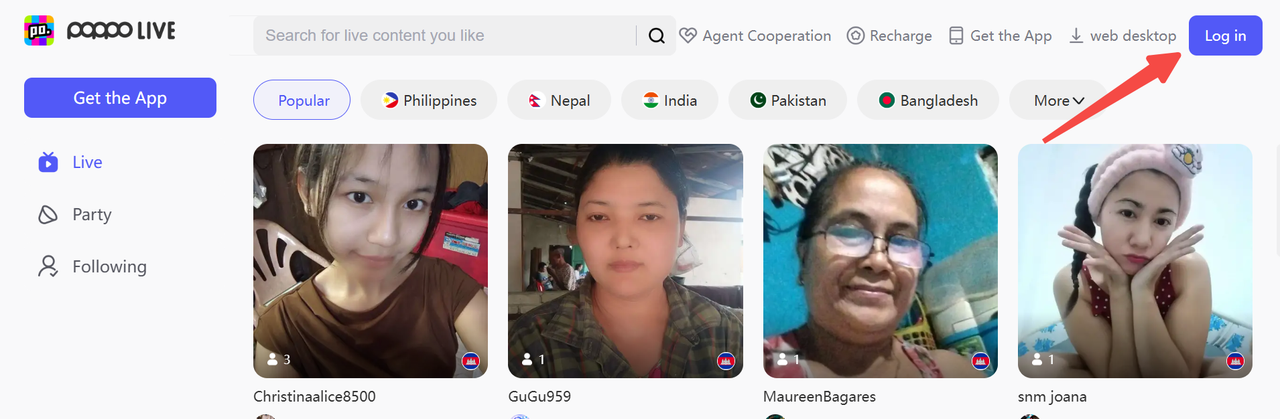
Open the official Poppo website and log in to your account.
Sign in with your Poppo account credentials.
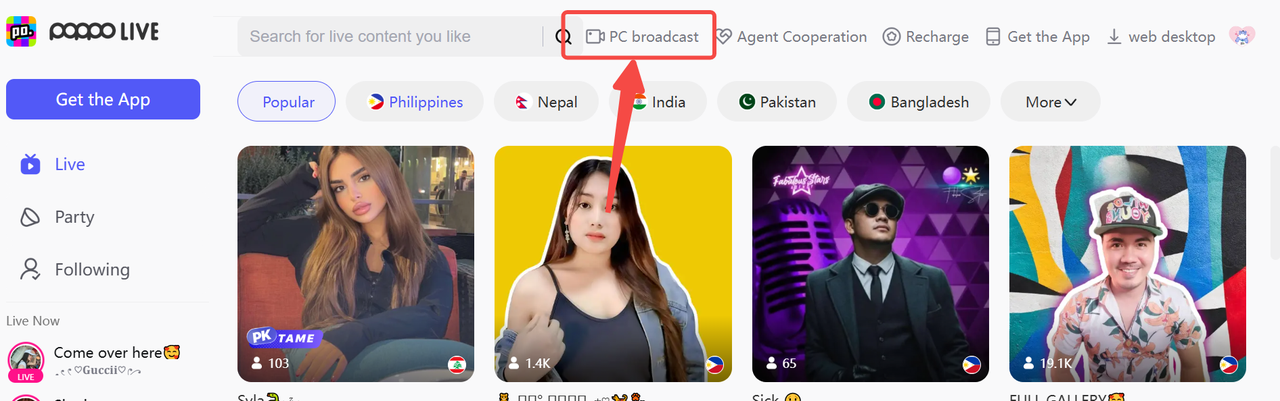
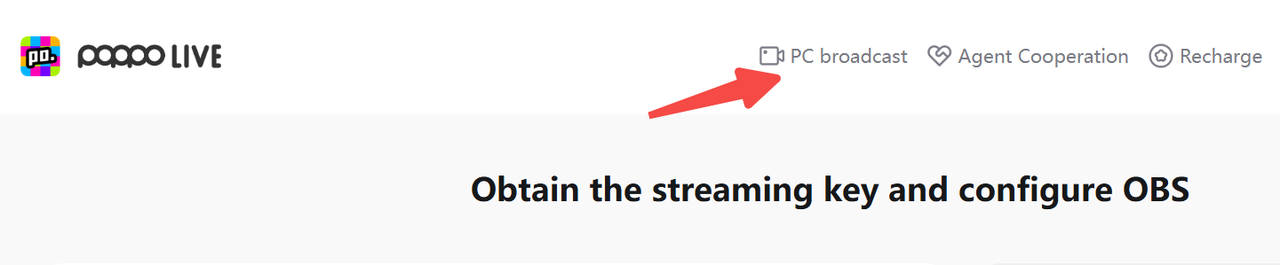
From your account menu, click into the PC live streaming interface.
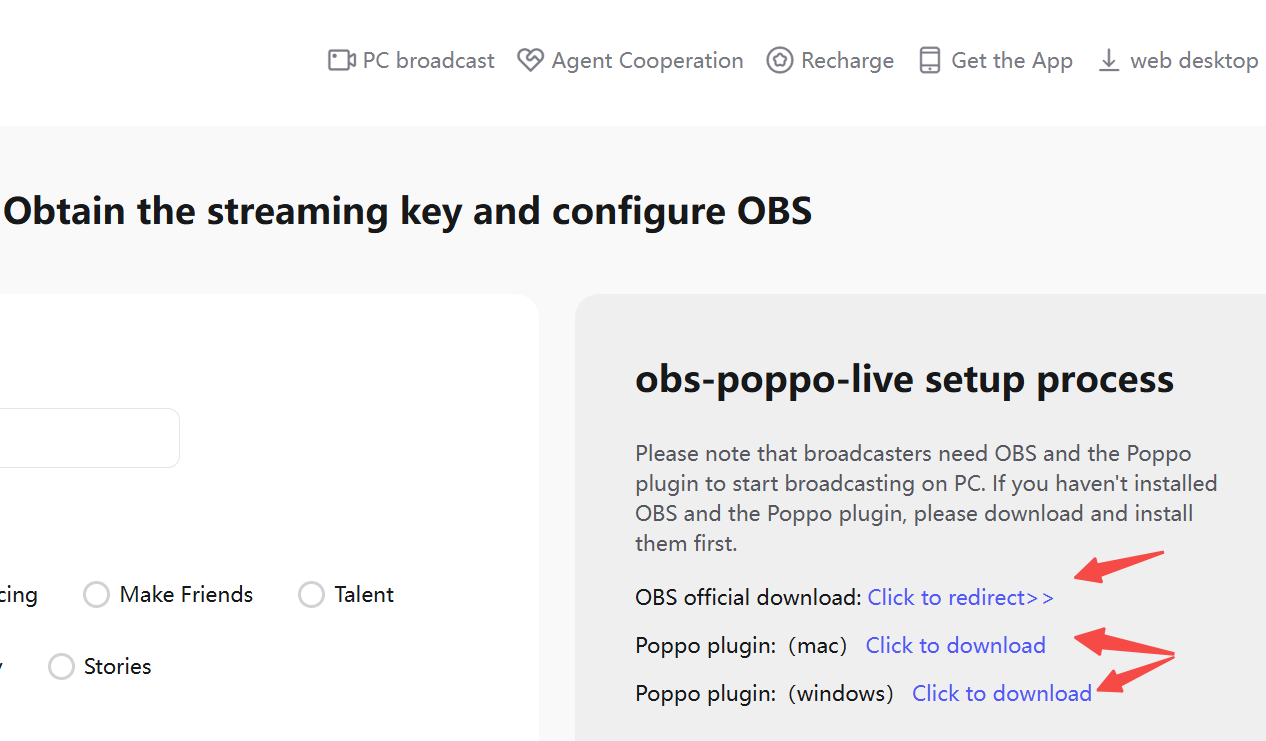
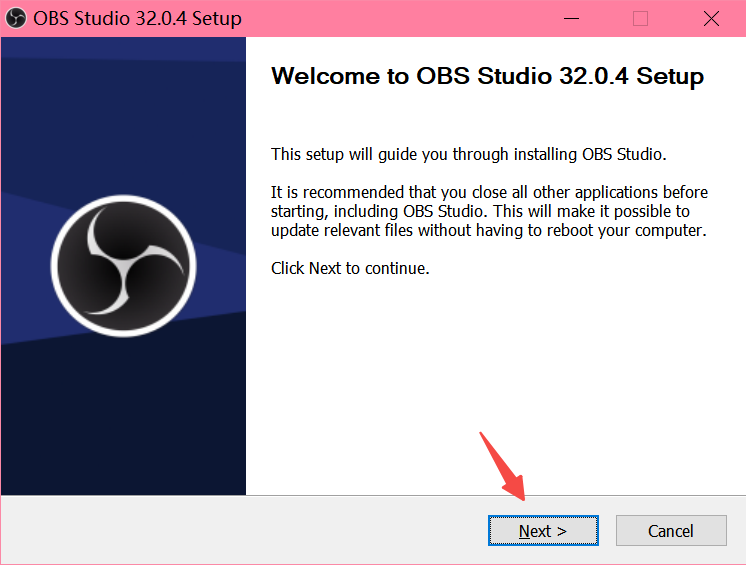
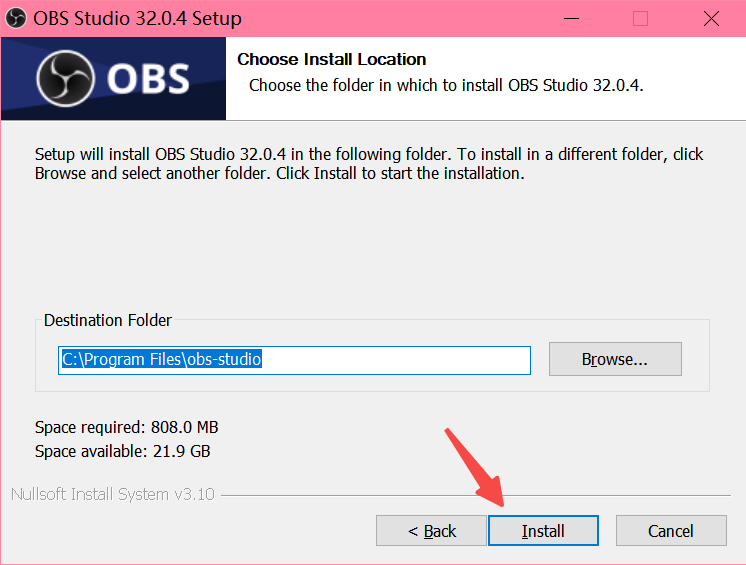
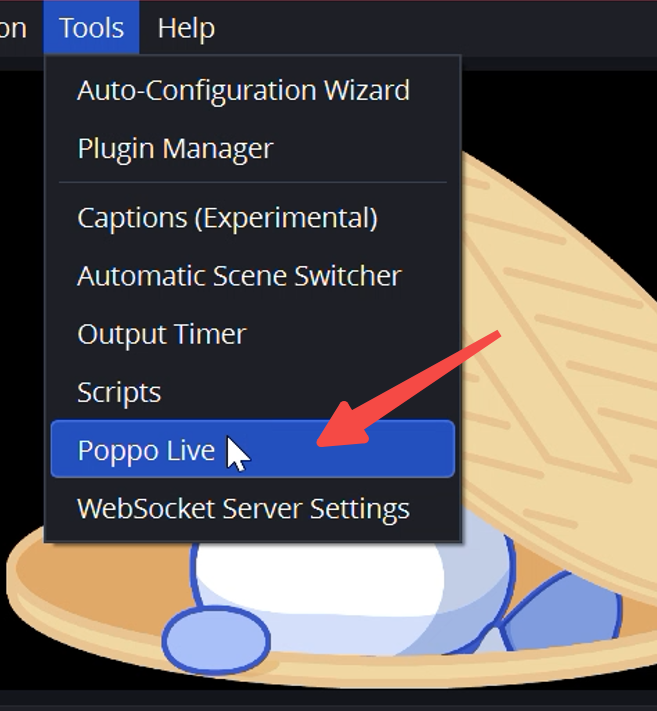
From this page, download both the OBS software and the Poppo streaming plugin.


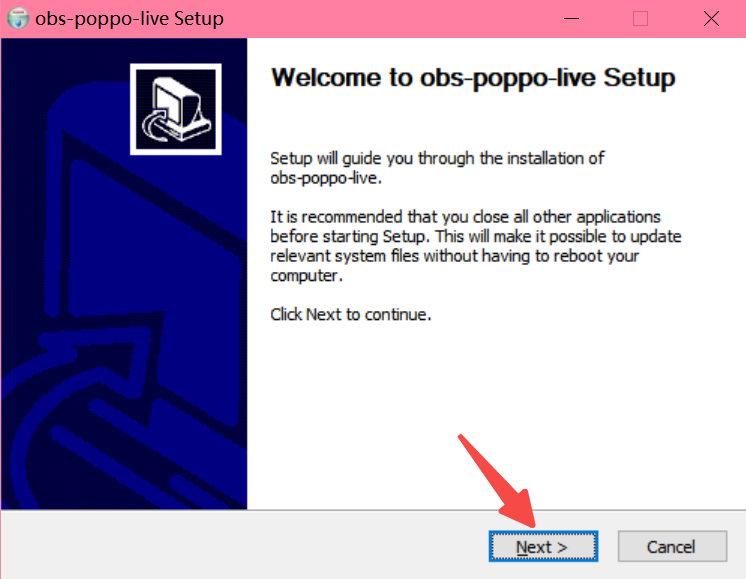
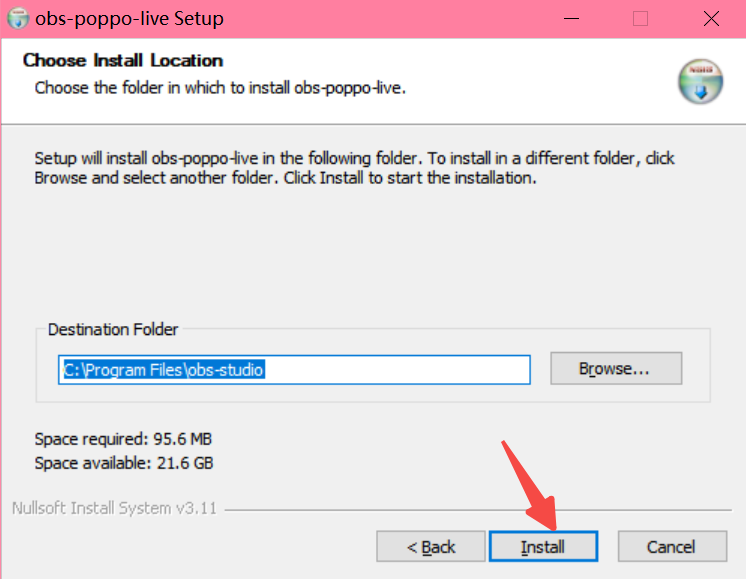
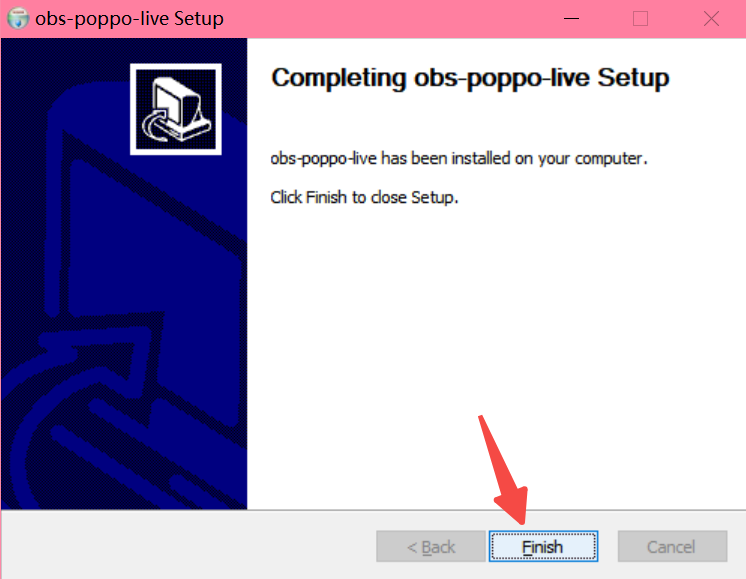
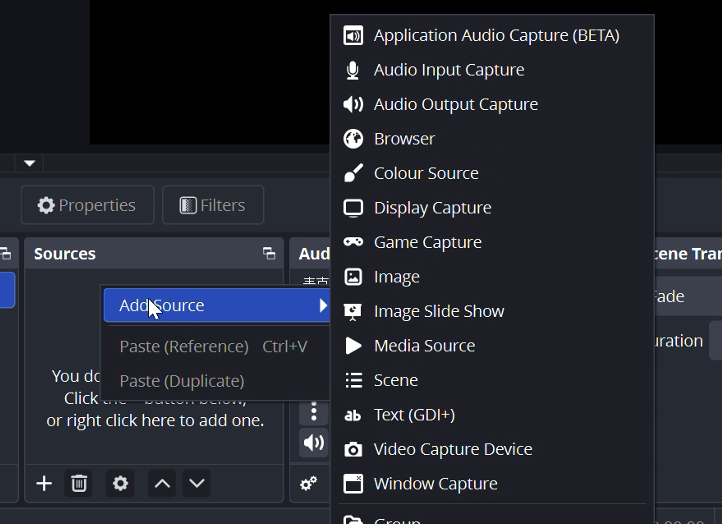
Right-click inside the Sources panel and add a new source.
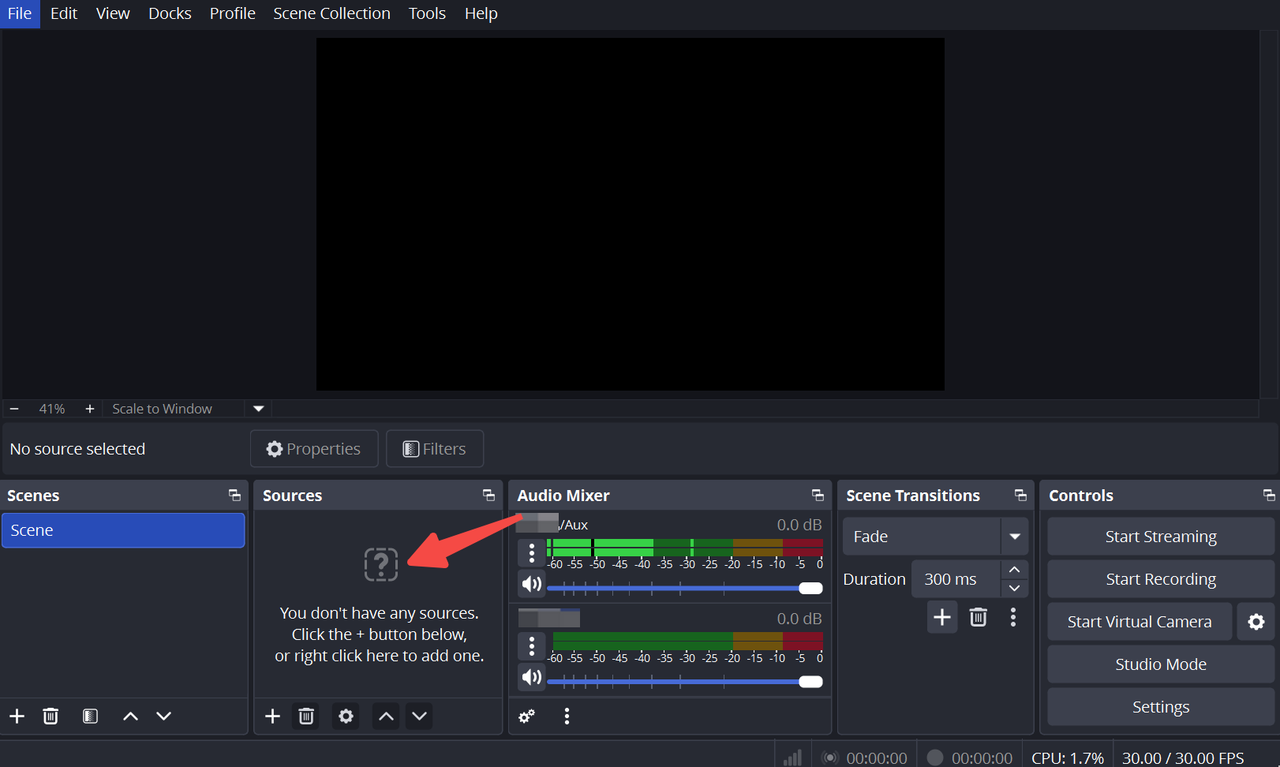
Choose from the available source materials (window capture, camera, images, etc.) to build your live streaming room layout.
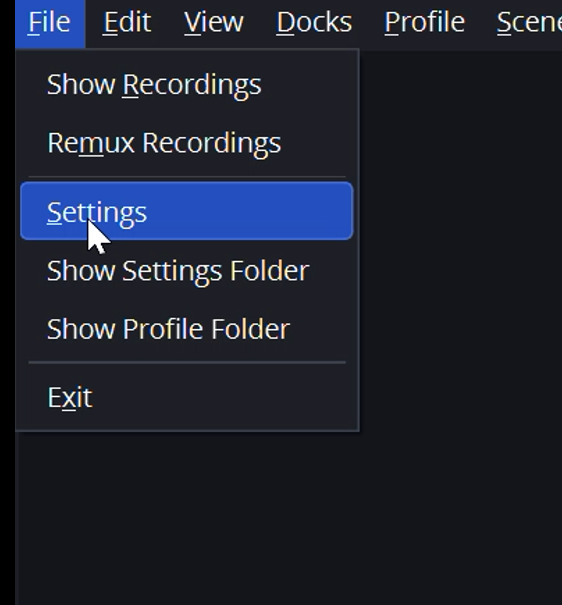
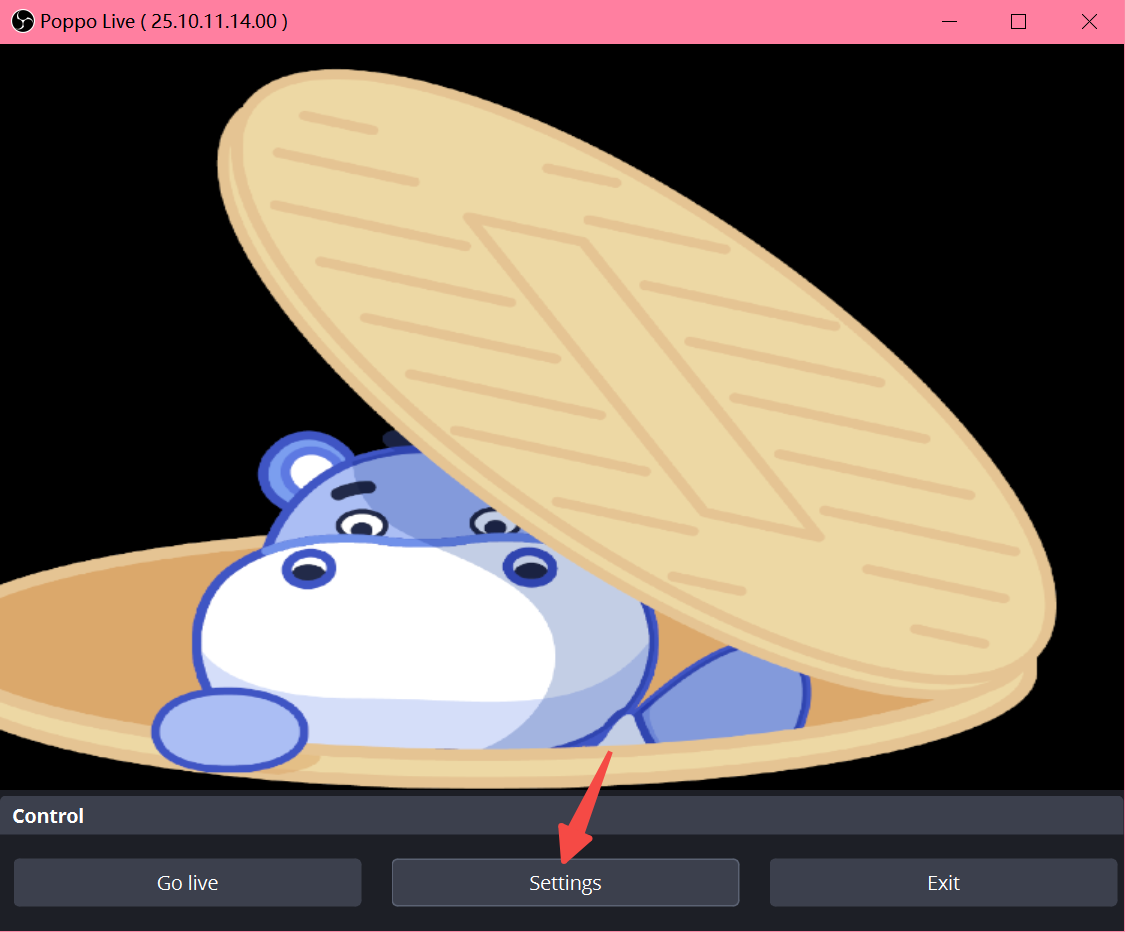
Click Settings, then set up your output resolution.
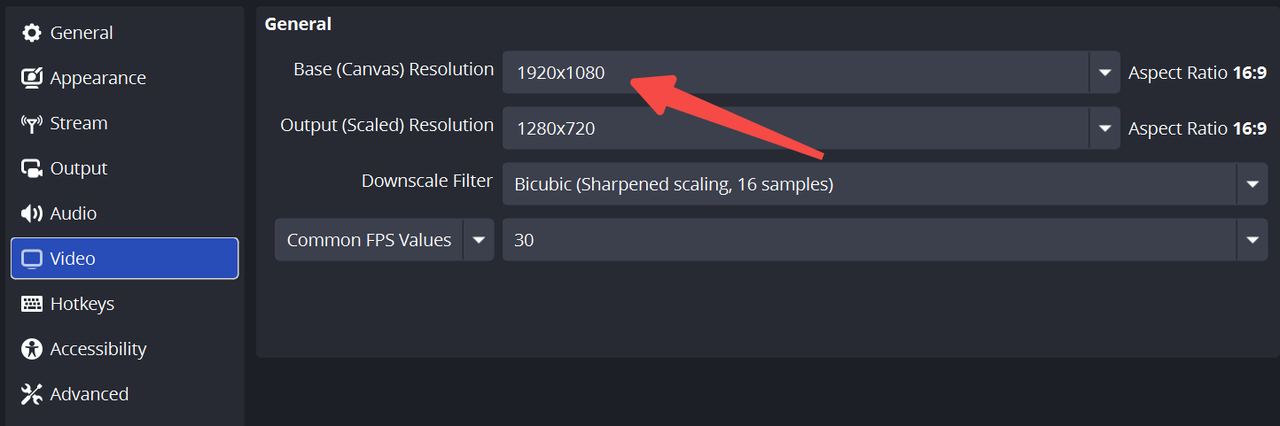
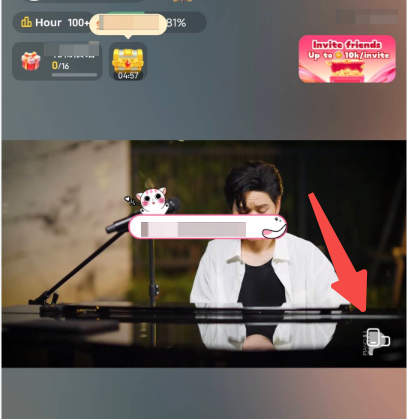
Note: the supported aspect ratio range is 0.5–2. An aspect ratio between 0.5 and 1 defaults to portrait live streaming; between 1 and 2 defaults to landscape live streaming.
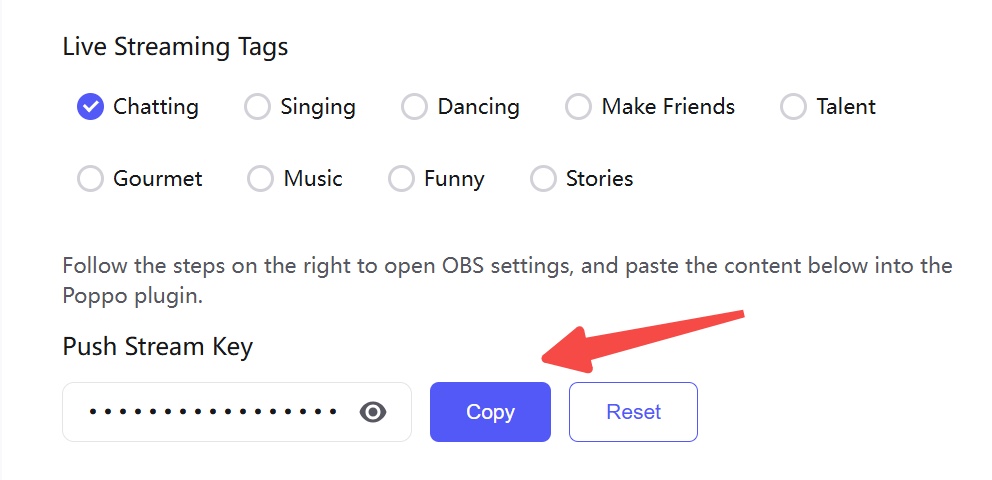
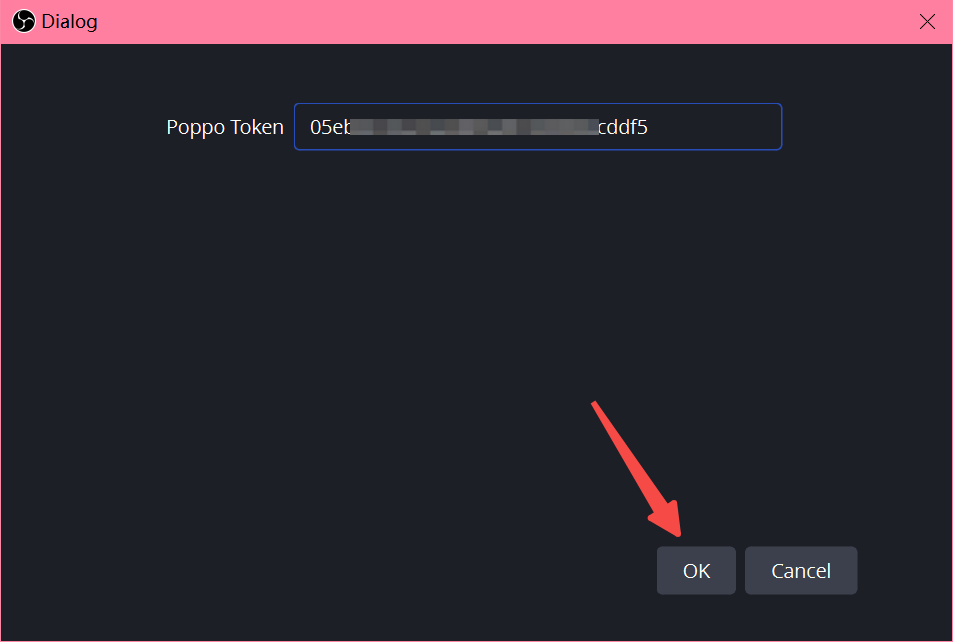
On the official Poppo website, open the PC live interface and copy your personal, exclusive Poppo streaming code.
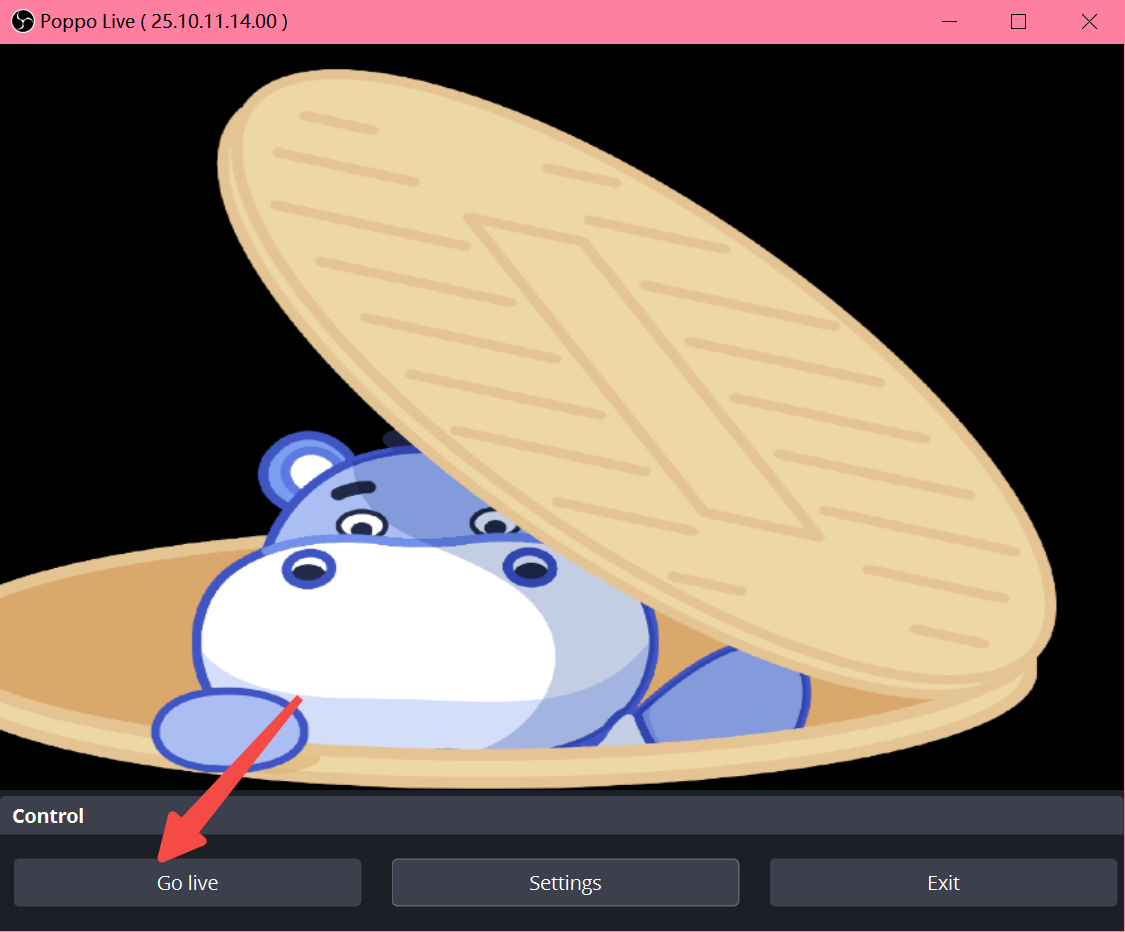
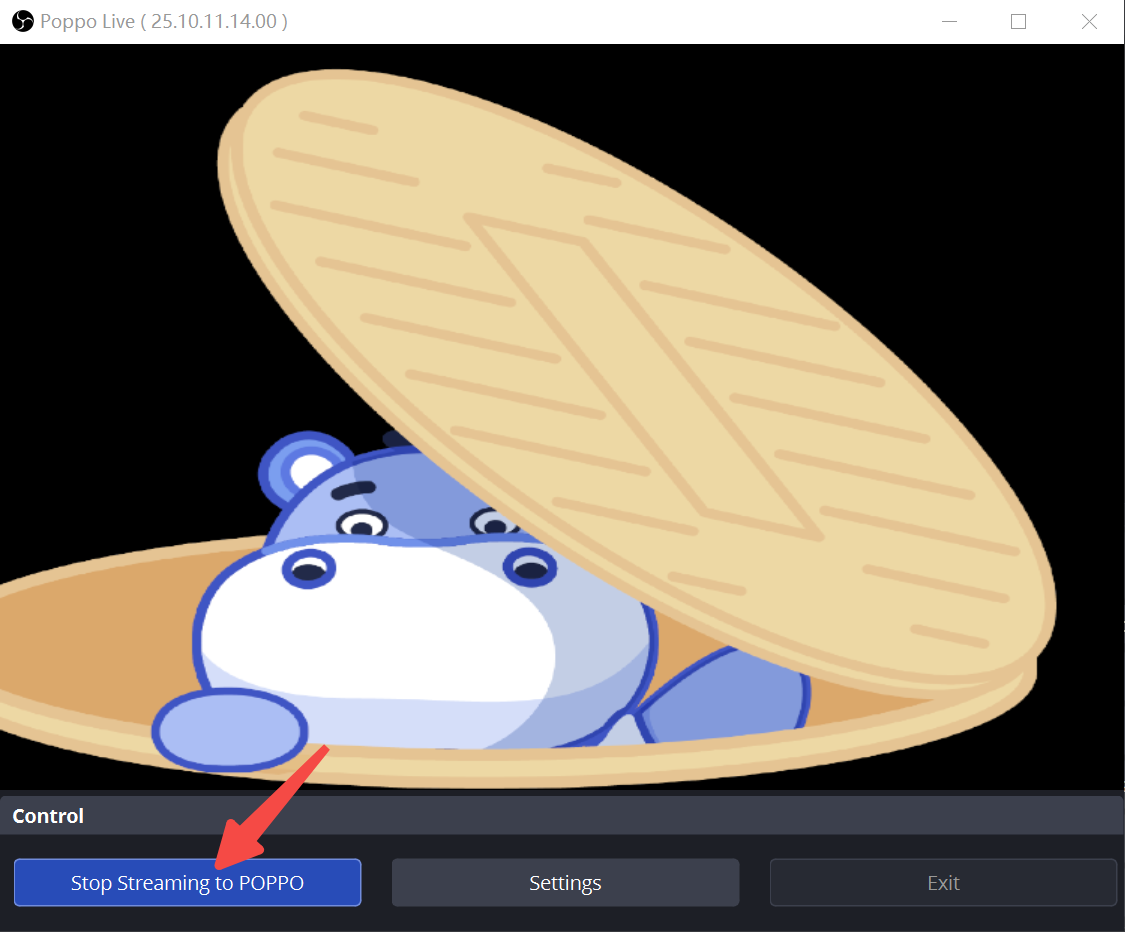
In OBS, click Start Streaming to begin pushing your live broadcast.
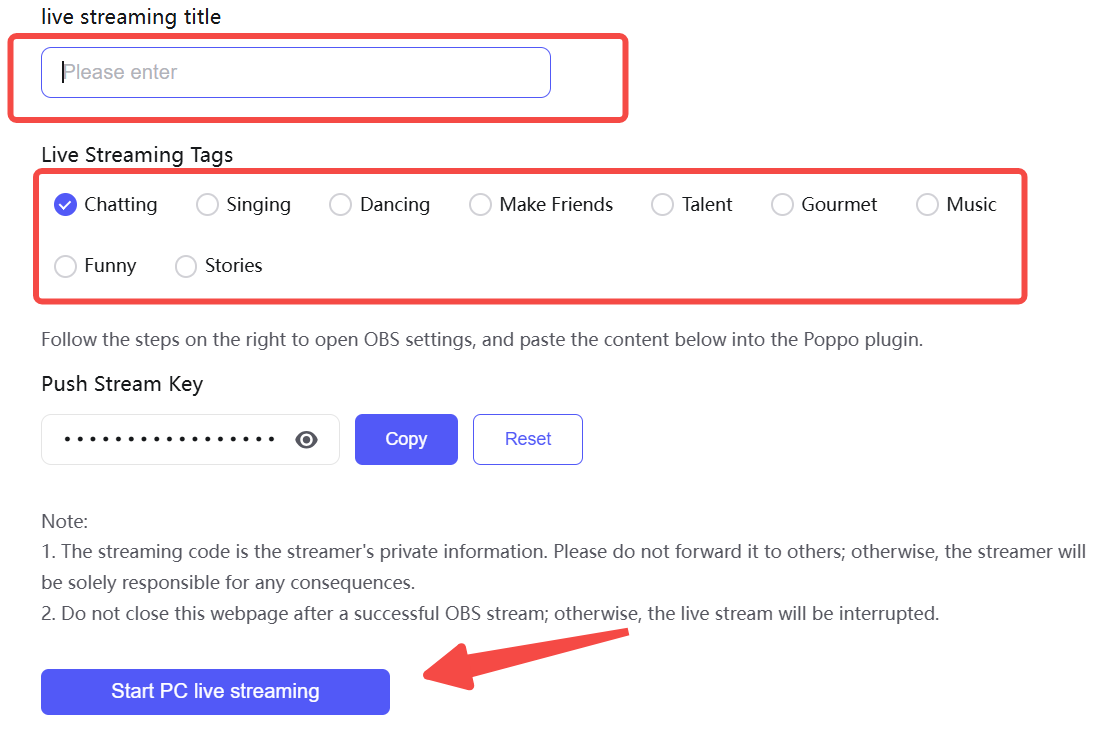
Return to the official Poppo website's PC live page, set your live streaming room name and category, then choose to go live. The PC end currently doesn't support uploading a room cover — complete that step on the mobile app before going live.
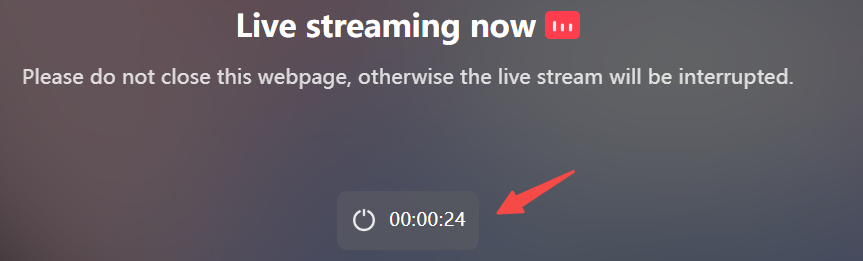
End your broadcast from the official Poppo website's PC page first.
Only after that, stop streaming inside OBS.
Viewer app version requirements: as of Jan 7, viewers need vone iOS 427 / Android 519; as of Jan 14, viewers need Poppo iOS 427 / Android 519.
Keep the PC webpage open and in the foreground. During your broadcast, the official Poppo website's PC page must stay open and cannot be minimized or backgrounded — otherwise your live room will disappear from the live list and your status will show as offline (OBS keeps streaming and existing viewers can keep watching, but new viewers won't be able to find you). Keep the PC webpage window at the top of your screen throughout the broadcast.
Always shut down in the correct order. Ending your broadcast out of sequence can cause your live room to freeze on the last OBS frame for up to 60 seconds on the mobile end before automatically cutting off. To protect the experience for your fans and viewers, always follow the shutdown sequence above: end the broadcast on the Poppo PC website first, then stop streaming in OBS.